Troubleshooting
Workflow Deployment Error
If there were any errors during the workflow deployment process, the Ingestion Pipeline Entity will still be created, but no workflow will be present in the Ingestion container.
- You can then Edit the Ingestion Pipeline and Deploy it again.
- From the Connection tab, you can also Edit the Service if needed.
Connector Debug Troubleshooting
This section provides instructions to help resolve common issues encountered during connector setup and metadata ingestion in OpenMetadata. Below are some of the most frequently observed troubleshooting scenarios.
How to Enable Debug Logging for Any Ingestion
To enable debug logging for any ingestion workflow in OpenMetadata:
Navigate to Services Go to Settings > Services > Service Type (e.g., Database) in the OpenMetadata UI.
Select a Service Choose the specific service for which you want to enable debug logging.
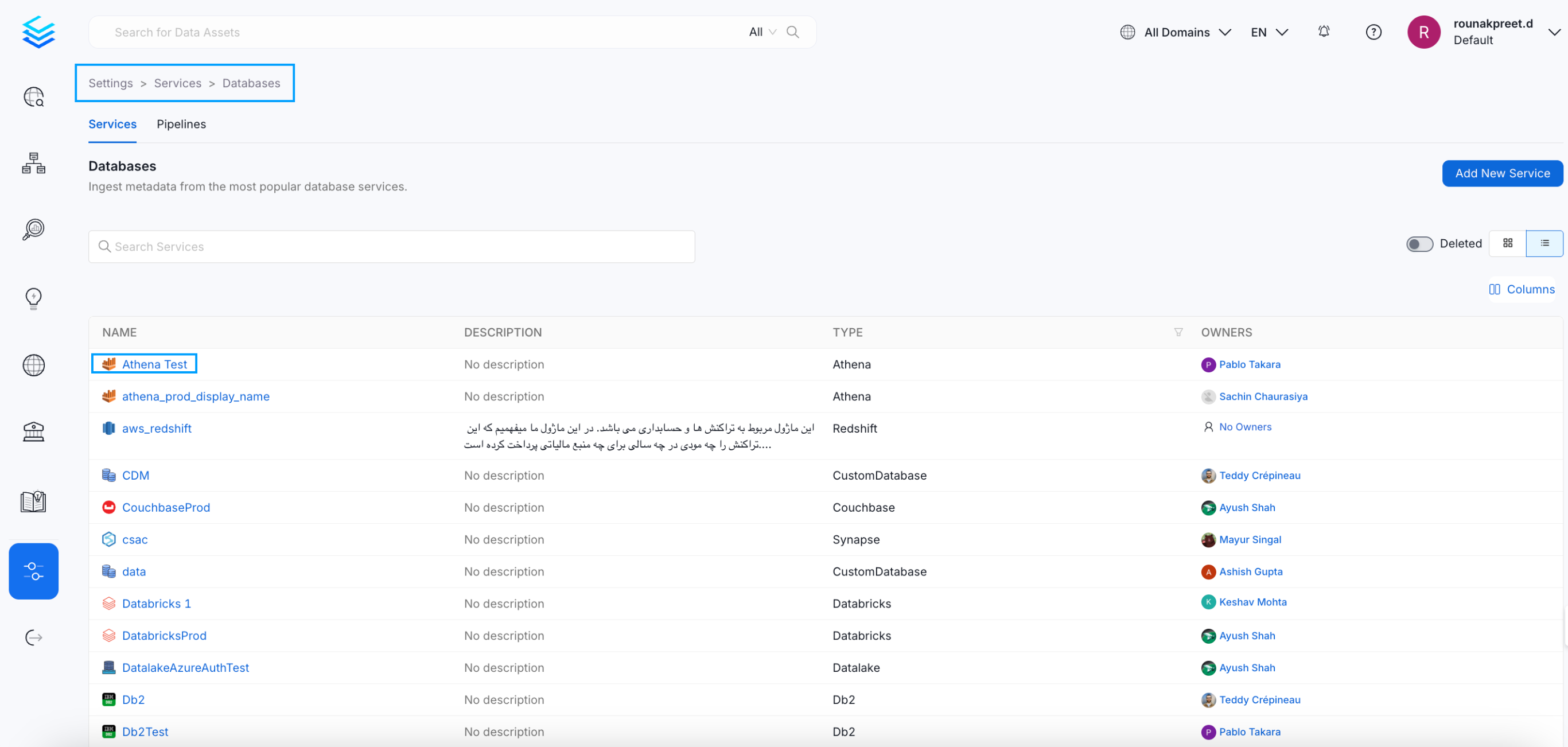
Select a Service
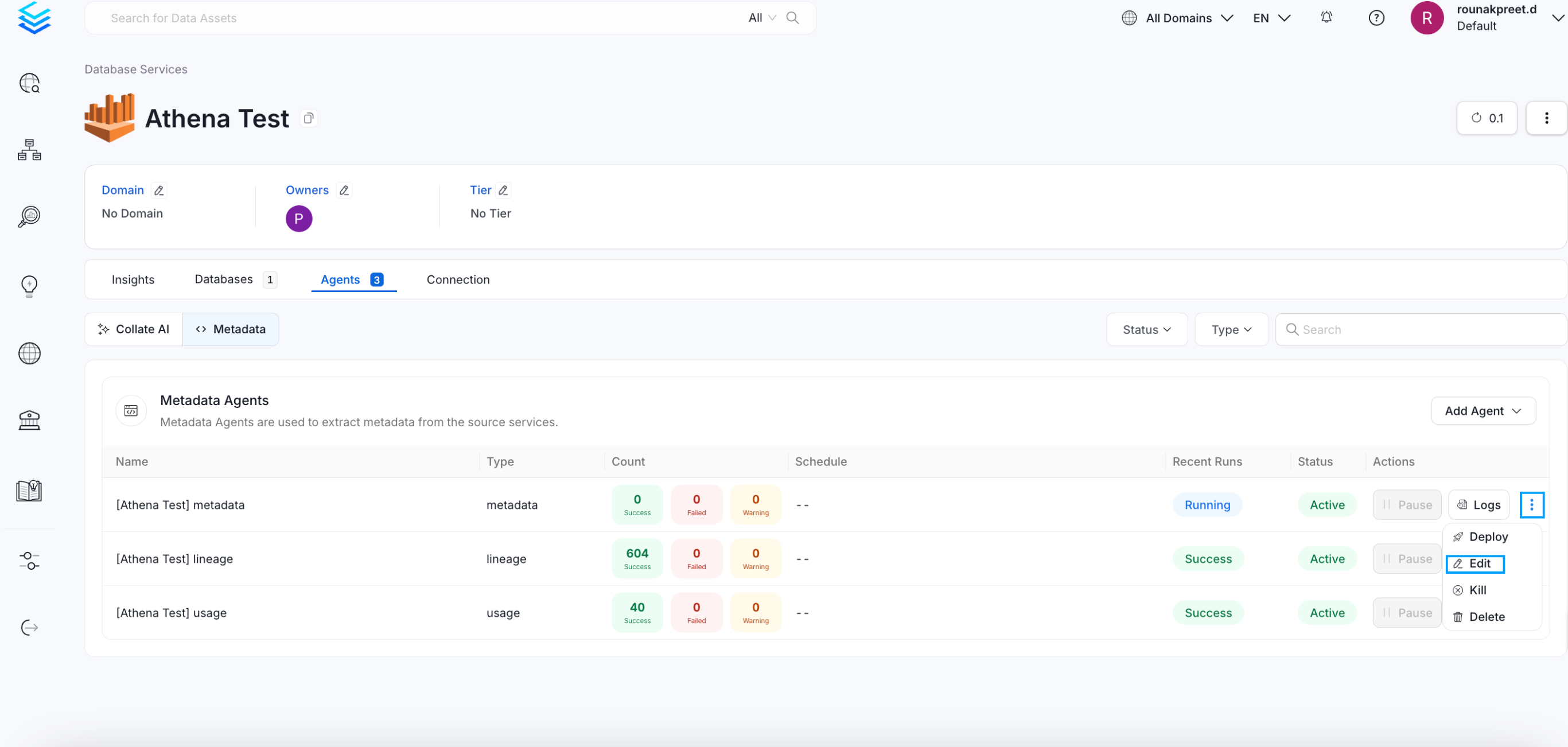
- Access Ingestion Tab Go to the Ingestion tab and click the three-dot menu on the right-hand side of the ingestion type, and select Edit.
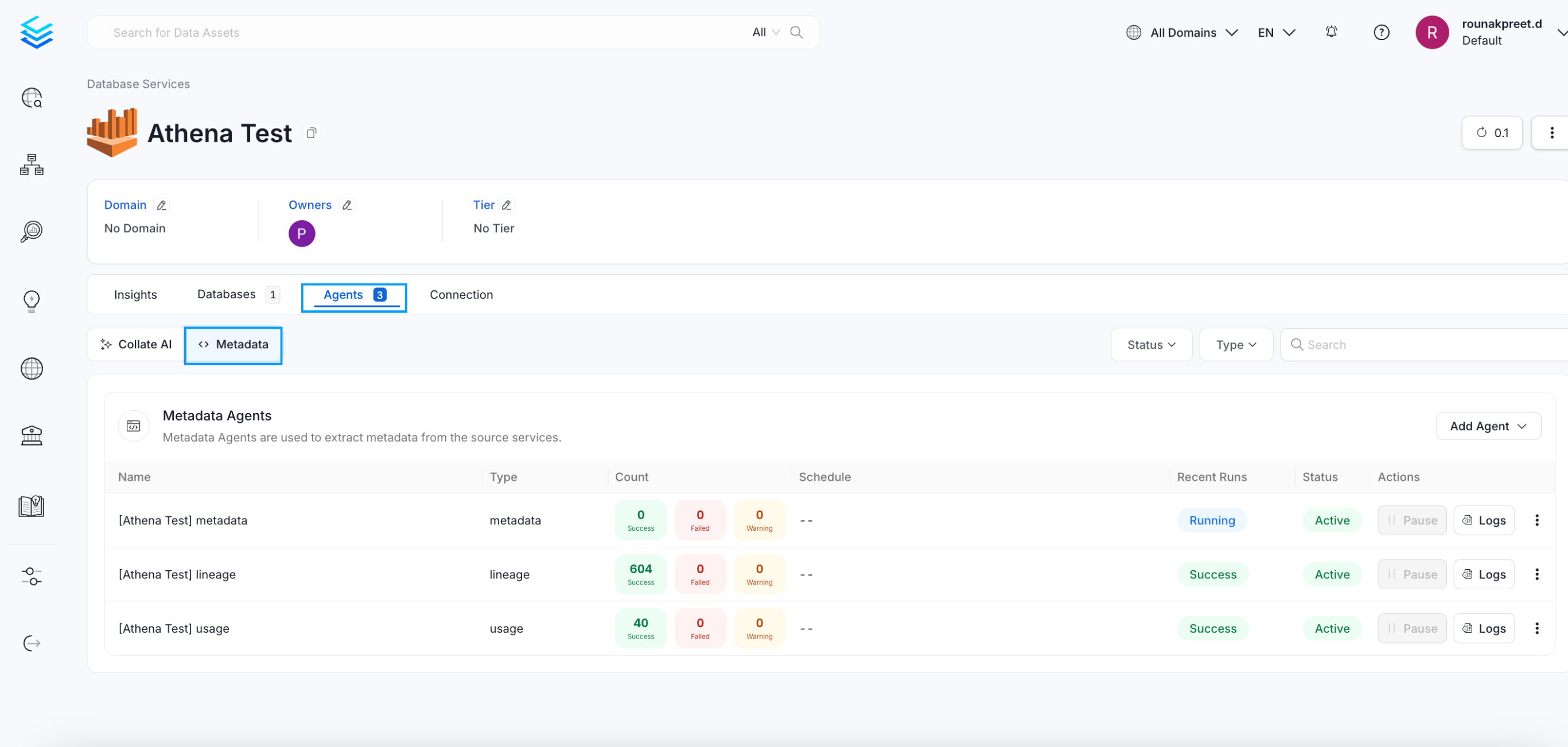
Access Agents Tab
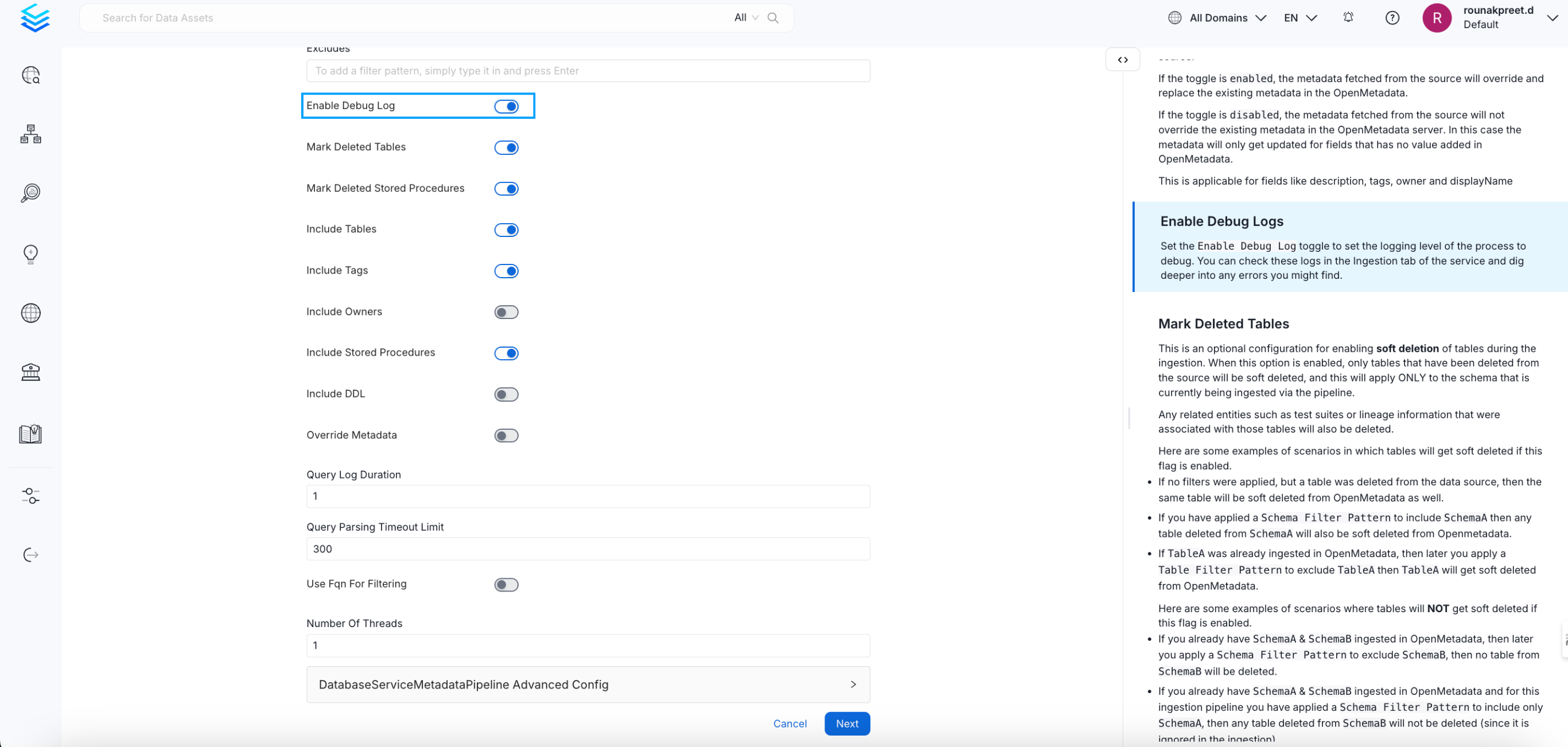
- Enable Debug Logging In the configuration dialog, enable the Debug Log option and click Next.
Enable Debug Logging
- Schedule and Submit Configure the schedule if needed and click Submit to apply the changes.
Schedule and Submit
Permission Issues
If you encounter permission-related errors during connector setup or metadata ingestion, ensure that all the prerequisites and access configurations specified for each connector are properly implemented. Refer to the connector-specific documentation to verify the required permissions.
Snowflake User Access Disabled
If you encounter the following error when attempting to connect to a Snowflake database:
This indicates that the Snowflake user account used for the connection has been disabled.
Resolution
Log in to Snowflake using an account with administrative privileges.
Run the following SQL command to re-enable the user:
Connection Timeout During Test Connection or Ingestion
If Snowflake is accessible from your ingestion environment but you still encounter connection timeout errors like the following:
This is most likely due to the size of the Snowflake warehouse being too small to handle the metadata extraction queries within the timeout period.
Resolution
We recommend using at least a Medium (M) sized Snowflake warehouse for OpenMetadata ingestion. Smaller warehouse sizes may not have enough compute resources to execute metadata queries before the connection times out.
To resize your warehouse, run the following SQL command:
Alternatively, you can resize the warehouse through the Snowflake UI by navigating to Admin > Warehouses and modifying the warehouse size.